How to View Password for WiFi on iPhone – Quick Retrieving Guide
Updated Guide: Learn simple and safe ways to see or share WiFi passwords stored on your iPhone without using unsafe third-party apps.
Struggling to remember your WiFi password when a guest asks for it or when you want to connect a new device? The good news is that your iPhone quietly remembers the networks you connect to and, on recent iOS versions, it can reveal those passwords in just a few taps. In this quick, step-by-step guide, you will learn how to view WiFi passwords directly on your iPhone, how to share them with other devices, and what to do when certain options are not available.
Why You May Need to View WiFi Passwords on an iPhone
WiFi passwords are easy to forget, especially when you have set them once and never typed them again. However, there are many real-life situations where you may need to view or share your WiFi password:
- You want to connect a new device such as a laptop, smart TV, smartwatch, or tablet.
- A guest or family member asks you for your WiFi password, and you cannot recall it.
- You have reset network settings on your iPhone and need to reconfigure another device.
- You are troubleshooting network issues and want to confirm the exact password saved on your device.
- You want to update the router settings and ensure you are using the correct password everywhere.
Instead of logging into your router or calling your internet provider, you can often retrieve the password directly from your iPhone if it is already connected or has been connected in the past.
Method 1: View WiFi Password Directly in iPhone Settings
If you are already connected to the WiFi network or have previously joined it, your iPhone stores the password in its settings. Starting with iOS 16, Apple added a simple option to reveal that password.
Steps to view the current WiFi password on iPhone
- Open the Settings app on your iPhone.
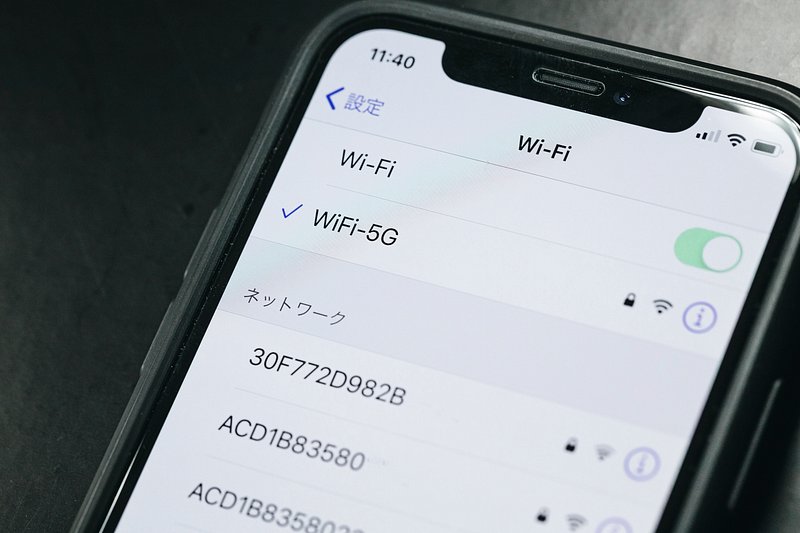
- Tap on Wi-Fi.
- Find the WiFi network you are currently connected to at the top of the list.
- Tap the small information icon (i) next to the network name.
- Locate the Password field in the network details page.
- Tap the hidden password (displayed as dots) to reveal it.
- Authenticate with Face ID, Touch ID, or your device passcode.
- Once verified, the WiFi password becomes visible on the screen.
- You can tap Copy to easily paste it into Messages, Notes, or any other app.
Note: This feature works only on devices running iOS 16 or later. If you do not see the Password option, your device may be using an older iOS version.
This method is the most convenient way to reveal the WiFi password because it is built into iOS, does not require any additional apps, and remains protected by your biometric or passcode authentication.
Method 2: View Passwords for Previously Saved WiFi Networks
You might want to view the password for a network you are not currently connected to, such as your office WiFi, a secondary home router, or a network from a place you visit regularly. Your iPhone keeps a record of those networks and, in many cases, can reveal their passwords as well.
Steps to view passwords for previously joined WiFi networks
- Open Settings on your iPhone.
- Tap Wi-Fi.
- On the WiFi screen, tap Edit in the top right corner.
- Authenticate using Face ID, Touch ID, or passcode.
- A list of Known Networks will appear.
- Scroll through the list and tap the information icon (i) next to the network you are interested in.
- Tap the Password field.
- Authenticate again if asked, and the saved password will be displayed.
This approach is ideal when you want to share passwords from networks that you are no longer near or currently connected to, but have previously used with the same iPhone.
Method 3: Use iCloud Keychain to Retrieve WiFi Passwords on a Mac
If you use multiple Apple devices, your WiFi passwords can sync between them through iCloud Keychain. This allows you to view WiFi passwords on a Mac even if it is easier for you to manage them on a computer.
Requirements for iCloud Keychain
- iCloud Keychain must be enabled on your iPhone.
- Your Mac must be signed in with the same Apple ID.
- Both devices should have iCloud Keychain turned on.
How to turn on iCloud Keychain on iPhone
- Open Settings.
- Tap your Apple ID name at the top.
- Select iCloud.
- Scroll down and tap Keychain.
- Toggle on iCloud Keychain.
Steps to view WiFi passwords on Mac using Keychain Access
- On your Mac, open Keychain Access (Applications > Utilities > Keychain Access).
- In the search bar, type the name (SSID) of your WiFi network.
- Double-click on the matching network entry.
- Enable the option Show password.
- Enter your Mac administrator username and password when prompted.
- The WiFi password will now be visible.
This method is very helpful if you regularly switch between Mac and iPhone or if you manage multiple networks and find it easier to copy and store passwords from your desktop.
Method 4: Share WiFi Password with Another iPhone or iPad Without Revealing It
In some situations, you may not need to see the password at all; you simply want to help someone else connect to your network quickly. Apple has a built-in feature that allows seamless WiFi password sharing between nearby Apple devices.
Steps to share WiFi password instantly
- Make sure both devices have Wi-Fi and Bluetooth enabled.
- Ensure that both devices are signed in to Apple ID and that the email addresses are saved in each other’s contacts (for best reliability).
- Keep both devices close together.
- On the device that needs WiFi, go to Settings > Wi-Fi and select your network.
- On the device already connected to the WiFi network, a pop-up will appear asking if you want to share the password.
- Tap Share Password.
- The other device will automatically connect to the WiFi network without manually typing the password.
This feature is fast, secure, and does not require you to read out or write down long, complex passwords. It is especially useful when you want to quickly connect a guest’s iPhone or iPad to your home network.
Troubleshooting: When You Cannot View WiFi Password on iPhone
Sometimes, despite following the steps correctly, your iPhone may not show the WiFi password. Below are some common causes and how to fix them.
1. Your iPhone is running an older iOS version
The option to reveal WiFi passwords in Settings is available only in iOS 16 and later. If you are using an older version, you will not see the Password field.
Solution:
- Go to Settings > General > Software Update.
- Download and install the latest available iOS version for your device.
2. The network was never saved on the iPhone
If your device has never connected to the WiFi network, it cannot display its password. The password must be stored at least once through a successful connection.
Solution: Ask the network owner for the password, or check the router label or admin panel.
3. Security restrictions or hidden SSID
Some routers use advanced security settings or hidden SSIDs, and in rare cases, this may affect how credentials are stored and displayed.
Solution: Log into the router’s admin page directly to verify the WiFi password.
4. iCloud Keychain not enabled
If you are trying to access the password on another Apple device and it is not appearing, iCloud Keychain may not be turned on or synced properly.
Solution: Ensure iCloud Keychain is enabled on both your iPhone and your other Apple devices, then allow time for syncing.
Other Ways to Retrieve WiFi Passwords
If none of the iPhone-based methods work for you, there are still reliable alternatives to find or reset your WiFi password.
1. Check the router label
Most routers come with a sticker that lists the default WiFi network name (SSID) and password. This label is usually found:
- On the back of the router.
- On the bottom panel.
- Inside the original packaging box.
- In the documentation provided by your internet service provider.
2. Log into the router admin page from your iPhone
You can view or change the WiFi password directly from your router’s settings page using Safari or any browser.
- Connect your iPhone to the WiFi network.
- Open Safari.
- Type your router’s IP address in the address bar (commonly 192.168.1.1 or 192.168.0.1).
- Log in using the admin username and password (often printed on the router or provided by your ISP).
- Go to the section called Wireless, Wireless Settings, or Wi-Fi.
- Locate the WiFi password or passphrase field. You may be able to reveal it or set a new one.
3. Contact your internet service provider (ISP)
If you are still unable to retrieve the WiFi password, contact your ISP’s support. They can help you reset or recover your WiFi credentials, especially if they provided the router.
WiFi Security Tips for iPhone Users
Being able to view stored WiFi passwords is convenient, but you should also take steps to keep your network safe. Here are some simple but effective security practices to follow.
1. Use strong and unique passwords
Avoid simple passwords such as:
- 12345678
- password
- yourname123
- your mobile number
Instead, create a combination of upper and lowercase letters, numbers, and symbols. Longer passwords are generally harder to crack.
2. Change the WiFi password after sharing widely
If you shared your WiFi with many guests over time, consider updating the password. This reduces the chances of unknown devices still having access.
3. Enable WPA3 or WPA2-AES security
Check your router settings and ensure you are using modern encryption like WPA3 or at least WPA2-AES. Avoid outdated standards like WEP.
4. Disable WPS if possible
WPS (WiFi Protected Setup) may make it easier for unauthorized users to gain access to your network. Disabling WPS improves overall security.
5. Be careful with public WiFi networks
When using public WiFi, avoid logging into sensitive accounts like online banking or email unless absolutely necessary. If you must, consider using a trusted VPN to encrypt your connection.
Frequently Asked Questions (FAQ)
1. Can I see WiFi passwords on iPhone without Face ID or passcode?
No. For security reasons, iOS requires authentication through Face ID, Touch ID, or your device passcode before revealing a WiFi password. This prevents unauthorized access if someone else is using your phone.
2. Can third-party apps show WiFi passwords on iPhone?
No. On non-jailbroken iPhones, Apple does not allow third-party apps to access WiFi passwords directly. Apps claiming to show saved WiFi passwords are often misleading or require device modifications that are not recommended for security and stability.
3. Can I see passwords for networks I have never connected to?
No. Your iPhone can only display passwords for networks that it has successfully connected to in the past. If you never joined a network, the password is not stored on your device.
4. Can I view the WiFi password if my iPhone is locked out?
No. You must first regain access to your device using your passcode, Face ID, or Apple account recovery. Only after unlocking the device can you view or share saved WiFi passwords.
5. Does viewing the WiFi password put my data at risk?
Viewing the password itself does not put your data at risk as long as your device is secure. Apple requires authentication before revealing the password, which helps protect your network from unauthorized users. Always be careful about where and with whom you share your WiFi credentials.