Change AOL Password on iPhone: Safeguard Your Accounts (Complete 2025 Guide)
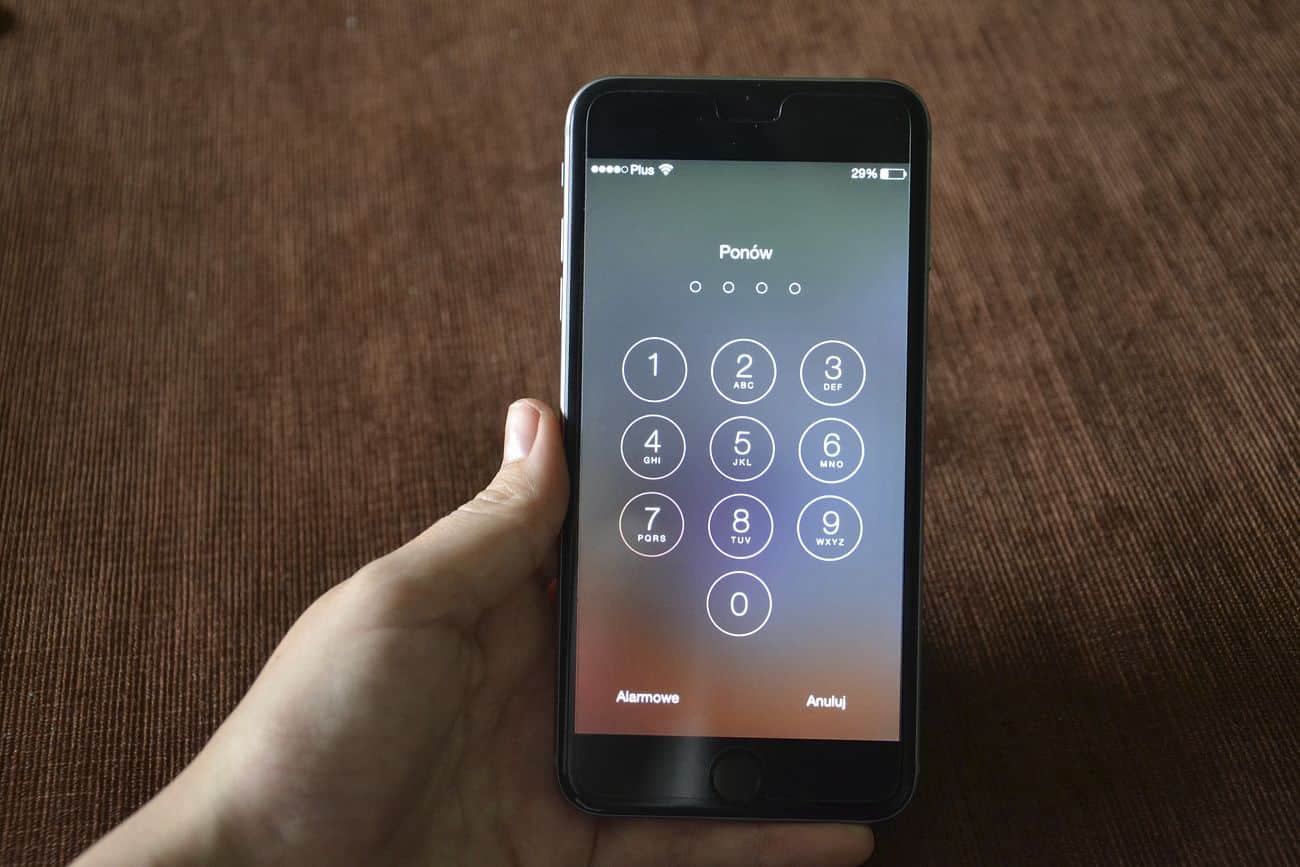
Updated for 2025: Learn how to change your AOL password on iPhone, update it in the Mail app, recover a forgotten password, and protect your email with simple security tips.
Cyberattacks and unauthorized logins are rising every year, and email accounts are often the primary target. Whether you use AOL Mail for personal conversations, shopping accounts, or important work communication, keeping it secure should be non-negotiable. One of the easiest and most powerful security practices is to change your AOL password regularly, especially on your most used device, your iPhone.
In this complete guide, you will learn exactly how to change AOL password on iPhone, how to update it in the Mail app, how to reset it if you forget, and what extra steps you can take to safeguard your account from hackers and unauthorized access.
Why Changing Your AOL Password on iPhone Matters
Many users only think about passwords when they forget them. But if you want real security, you should treat your AOL password as a digital key that needs to be updated and protected. Changing it regularly helps you block unknown access and stay ahead of potential threats.
1. Protection Against Hacks and Data Leaks
Even if AOL itself has strong security, you may have used the same password on other websites and apps. If any of those platforms are compromised, attackers can try the same credentials on your AOL account. By changing your AOL password on a regular basis, you reduce the chances of hackers gaining access.
2. Prevent Unauthorized Login Attempts
Once someone has your password, they can silently log in, forward your emails, or reset other accounts linked to your AOL address. A fresh password instantly locks them out and stops suspicious activity in its tracks.
3. Protect Personal and Financial Information
Your AOL inbox probably contains sensitive information such as bank alerts, receipts, password reset emails, and private conversations. A strong, updated password keeps this private information out of the wrong hands.
4. Keep All Your Devices in Sync and Secure
Many people access AOL Mail from multiple devices like iPhone, iPad, and desktop. When you change your AOL password and update it everywhere, you maintain both security and smooth access across all your gadgets.
How to Change AOL Password on iPhone (Fastest Method)
The most reliable way to change your AOL password on an iPhone is by using a browser such as Safari or Chrome. The default iPhone Mail app does not have a built-in option to modify the password itself; it only uses the password you set on AOL.
Step 1: Open Safari or Any Browser on Your iPhone
Unlock your iPhone and open Safari. You can also use Chrome or any other browser installed on your device.
Step 2: Go to the AOL Login Page
In the address bar, type:
mail.aol.com
Then tap Sign In if you are not already logged in.
Step 3: Sign In to Your AOL Account
Enter your AOL username or email address and your current password. If your browser offers saved passwords or Face ID, approve it to log in quickly.
Step 4: Open Your AOL Account Security Settings
Once you are signed in:
- Tap your profile icon at the top right.
- Select Account Info from the drop-down menu.
- Tap the Security tab to access your security options.
You may be asked to confirm your identity through your current password, SMS code, or Face ID.
Step 5: Tap on Change Password
Inside the Security section, look for the Change password option and tap it to continue.
Step 6: Create a New, Strong AOL Password
Now it is time to enter your new password. For better security, make sure it:
- Has at least 12 characters
- Includes uppercase and lowercase letters
- Contains numbers
- Uses symbols or special characters
- Is different from your previous passwords
Example of a strong password structure: a random phrase plus numbers and symbols.
Step 7: Confirm and Save Your New Password
Type the password again into the confirmation field, then tap Save or Continue.
Your AOL password is now successfully changed. Next, you will need to update this new password in the iPhone Mail app so your emails keep syncing without errors.
How to Update AOL Password in the iPhone Mail App
After changing your AOL password on the website, your Mail app may start showing errors or ask you to re-enter your password. Here is how to fix that.
Method 1: Re-Enter Password When Prompted
Sometimes the Mail app automatically detects the password change.
- Open the Mail app on your iPhone.
- If a message appears like AOL Password Required, tap Edit Settings or Continue.
- Enter your new AOL password.
- Tap Done and wait for Mail to sync.
Method 2: Update AOL Password Manually from Settings
If you do not get a pop-up, you can manually update the password in iOS settings.
- Open the Settings app on your iPhone.
- Scroll down and tap Mail.
- Tap Accounts.
- Select your AOL account from the list.
- Tap Account at the top.
- Look for the Password field under the incoming mail server.
- Enter your new AOL password.
- Tap Done to save your changes.
Your Mail app should now successfully send and receive AOL emails using your new password.
Method 3: Remove and Re-Add Your AOL Account
If the Mail app continues to show errors, the cleanest solution is to remove and re-add your AOL account.
Remove AOL Account
- Open Settings.
- Tap Mail.
- Tap Accounts.
- Select your AOL account.
- Tap Delete Account and confirm.
Add AOL Account Again
- Return to Settings > Mail > Accounts.
- Tap Add Account.
- Select AOL from the list of providers.
- Enter your AOL email and new password.
- Tap Next and complete the setup.
This gives the Mail app a fresh configuration and resolves most login and sync issues.
Forgot AOL Password on iPhone? Here Is How to Recover It
If you cannot remember your AOL password at all, you can reset it within minutes using your iPhone. Follow these steps carefully.
- Open Safari and visit login.aol.com.
- Tap Trouble signing in or similar help option.
- Enter your AOL email address or the phone number linked to your account.
- Choose a recovery method:
- Receive a verification code by SMS
- Get a code via recovery email
- Answer your security questions
- Enter the code or answer as requested.
- Once verified, you will be able to create a new AOL password.
After resetting, remember to update this new password on your iPhone Mail app using the steps we explained earlier.
Troubleshooting: AOL Password Not Working on iPhone
Even after changing or resetting your AOL password, you might still see errors on your iPhone. Here are the most common causes and how to fix them.
1. Typing Errors or Wrong Password
Check for mistakes such as:
- Missing uppercase letters
- Accidentally added spaces
- Wrong symbols or numbers
- Auto-correct changing part of your password
Try typing your password slowly in the Notes app first to make sure it looks correct, then copy and paste it into the password field.
2. App Password Required for Older Email Apps
Some older email clients or apps with weaker security require a special app password instead of your main AOL password. To generate an app password:
- Sign in to your AOL account from a browser.
- Go to Account Security.
- Look for an option like Generate app password.
- Use the generated password in the email app instead of your usual AOL password.
3. Two-Factor Authentication Issues
If you have enabled two-step verification on AOL, make sure:
- Your phone number is active and correct.
- You are receiving SMS codes or call alerts.
- You enter the verification code promptly before it expires.
4. Temporary AOL Server Problems
Sometimes the issue is not on your side. AOL servers may be down or undergoing maintenance. To check this:
- Try logging in from a different device.
- Search online for recent AOL outage reports.
5. Outdated iOS Version
Running very old iOS versions can sometimes cause compatibility problems. To update:
- Go to Settings.
- Tap General.
- Tap Software Update.
- Install any updates available.
After updating, restart your iPhone and try again.
How Often Should You Change Your AOL Password
There is no one rule that works for everyone, but security experts commonly recommend changing passwords every 90 days. However, you should change your AOL password immediately if:
- You shared your password with someone.
- You used the same password on multiple websites.
- You logged into AOL on a public or shared device.
- You received alerts about suspicious sign-in activity.
- Your phone or laptop was lost, stolen, or repaired by someone else.
Regular password updates are a simple habit that gives you stronger protection over time.
How to Create a Strong AOL Password That Is Hard to Hack
A strong password is your first line of defense against unauthorized access. Here are practical tips to build one:
1. Avoid Personal Information
Do not include obvious details like:
- Your name or username
- Your birthdate or anniversary
- Your phone number
- Pet names or common words like password123
2. Use a Passphrase Instead of a Single Word
Combine unrelated words with symbols and numbers. For example, a pattern like:
RainTrack_92SkyGarden
This kind of passphrase is long, memorable, and difficult to guess.
3. Mix Uppercase, Lowercase, Numbers, and Symbols
Include a variety of character types to increase complexity. An example structure:
LightHouse_84!Storm
4. Use a Password Manager
If you struggle to remember strong passwords, use a password manager. Tools like 1Password, Bitwarden, Dashlane, or other managers can:
- Generate complex passwords automatically
- Store them securely
- Fill them in with a single tap
This way, you get maximum security without needing to memorize each password.
Extra Security Tips to Protect Your AOL Account
Changing your AOL password on iPhone is a strong step, but you can go further with a few additional security practices.
1. Turn On Two-Factor Authentication
Two-factor authentication (2FA) adds a second step to your login process. Even if someone knows your password, they will also need a code sent to your phone.
- Sign in to AOL in your browser.
- Go to Account Security.
- Enable Two-step verification or similar option.
- Add your mobile number and verify it.
2. Keep Recovery Details Updated
Make sure your recovery email and phone number are always correct. These details will be crucial if you ever get locked out of your account.
3. Review Recent Login Activity
AOL allows you to view recent sign-in activity. If you see locations or devices that you do not recognize, change your password immediately and enable 2FA.
4. Avoid Public Wi-Fi for Sensitive Logins
Public networks at cafes, airports, or malls can sometimes be insecure. Avoid logging into AOL or other important accounts on public Wi-Fi. If needed, use mobile data or a trusted VPN.
5. Keep Your iPhone and Apps Updated
Apple frequently releases security patches and improvements. Always keep your iOS version and apps up to date to reduce vulnerabilities.
6. Log Out from Shared Devices
If you check AOL on a friend’s phone, work computer, or public device, make sure to log out completely and clear browsing data afterwards.
Frequently Asked Questions: Change AOL Password on iPhone
1. Can I change my AOL password directly from the iPhone Mail app?
No. The iPhone Mail app does not provide a built-in option to change your AOL password. You need to change it from the AOL website using a browser, then update the new password in the Mail app.
2. What should I do if I forget my AOL password on iPhone?
Use the Trouble signing in or password reset option on the AOL login page. You can reset your password using a verification code sent to your phone or recovery email.
3. Do I need to change the password on every device?
Yes. After you change your AOL password, you must update it on all devices where your AOL account is set up, including iPhones, tablets, and computers.
4. Why does AOL sometimes lock my account?
AOL can temporarily lock your account if it detects suspicious activity, repeated failed login attempts, or unusual sign-ins from new locations. Changing your password and enabling two-factor authentication usually solves this.
5. Is it really necessary to change the password every few months?
While it is not mandatory, regularly updating your password is a smart habit that significantly improves your online security, especially if your email is linked to many other accounts.